
VEIN supports transferring your single-player world to a dedicated server so you can continue your progress with friends. This guide explains how to locate your save files correctly, upload them to your HostByte Game Panel, and configure them to run on your dedicated server.
Step 1 — Locate Your Single-Player Save
Your VEIN saves are stored inside the game’s installation folder rather than AppData. You can easily access them through Steam.
- Open Steam.
- Right-click VEIN in your Library and select Manage → Browse Local Files.
- In the new window that opens, navigate to:
VEIN\Saved\SaveGames\
- Inside the SaveGames folder, you’ll find one or more world folders (for example,
SoloBase1.vdf).
Note: If you only see "steam_autocloud.vdf" you might need to disable cloud sync load up a save or create a new one then close the game and check the file location again.
Step 2 — Stop Your Server
- Log in to your HostByte Game Panel.
- Select your VEIN Server from the server list.
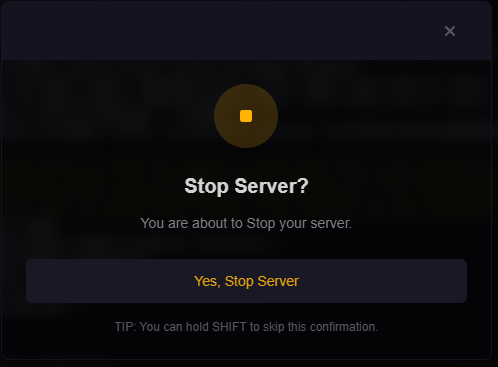
- Click Stop before uploading your save to avoid overwriting active files.
Step 3 — Upload Your Save Folder
Next, upload your single-player world folder to your dedicated server.
- In your HostByte panel, open the File Manager.
- Navigate to:
Vein/Saved/SaveGames/
- Upload your single-player world folder (for example,
SoloBase1.vdf) into this directory. - Ensure the folder name contains no spaces or special characters.
- Go to Startup Parameters or game.ini and change the world name to the name of your save (for example,
SoloBase1) without the .vdf this time.
Tip: You can use the panel’s built-in upload tool or drag-and-drop. For large saves, we recommend using an FTP client for faster transfer. you can learn how to use SFTP here with this article "How to connect via SFTP"
Step 4 — Configure the Server to Load Your Save
Once uploaded, you need to tell VEIN which world to load at startup.
- Go to the Startup Parameters tab in your HostByte Game Panel.
- Locate the field for World Name.
- Enter the exact folder name of your uploaded save (for example,
SoloBase1). - Click Save to apply changes.
Step 5 — Start and Verify
- Start your server from the Game Panel.
- Join your server via Join Multiplayer or by direct IP connection.
- Your single-player world should now load exactly as before — including bases, loot, and structures.
Troubleshooting
Common Migration Issues:
- Server starts a new world: Ensure the folder name in Startup Parameters matches your uploaded world exactly.
- Missing or empty world: Confirm you uploaded the correct folder from
VEIN\Saved\SaveGames. - Spawned incorrectly: Players may need to respawn once for character sync to apply.
Next Steps
- How to Set Up a VEIN Dedicated Server
- How to Join and Invite Friends to Your VEIN Server
- VEIN Server Ports Explained (Game, Query, HTTP)
Getting Help
- Knowledge Base: Explore more VEIN guides (saving, configuration, admin setup, and backups).
- Support Ticket: Log in to your HostByte account to open a ticket.
- Discord: Join our community:
- Status Page: Check maintenance/outages: status.hostbyte.net.