
The console is your direct connection to your game server. This guide shows you how to use the console to monitor your server and send commands.
What is the Console?
The console provides real-time access to your server:
- Live Logs - See server messages in real-time
- Command Execution - Send commands directly to your server
- Error Monitoring - View error messages and warnings
- Player Activity - See player joins, leaves, and actions
- Server Status - Monitor server performance and health
- Plugin Output - View plugin messages and errors
Accessing the Console
Open the console in your Game Panel:
- Log into your HostByte Game Panel
- Click on your server or click the manage button
- Once in, the console will be on the main server dashboard
- if you want to pop-out the console for ease of use, click the console button
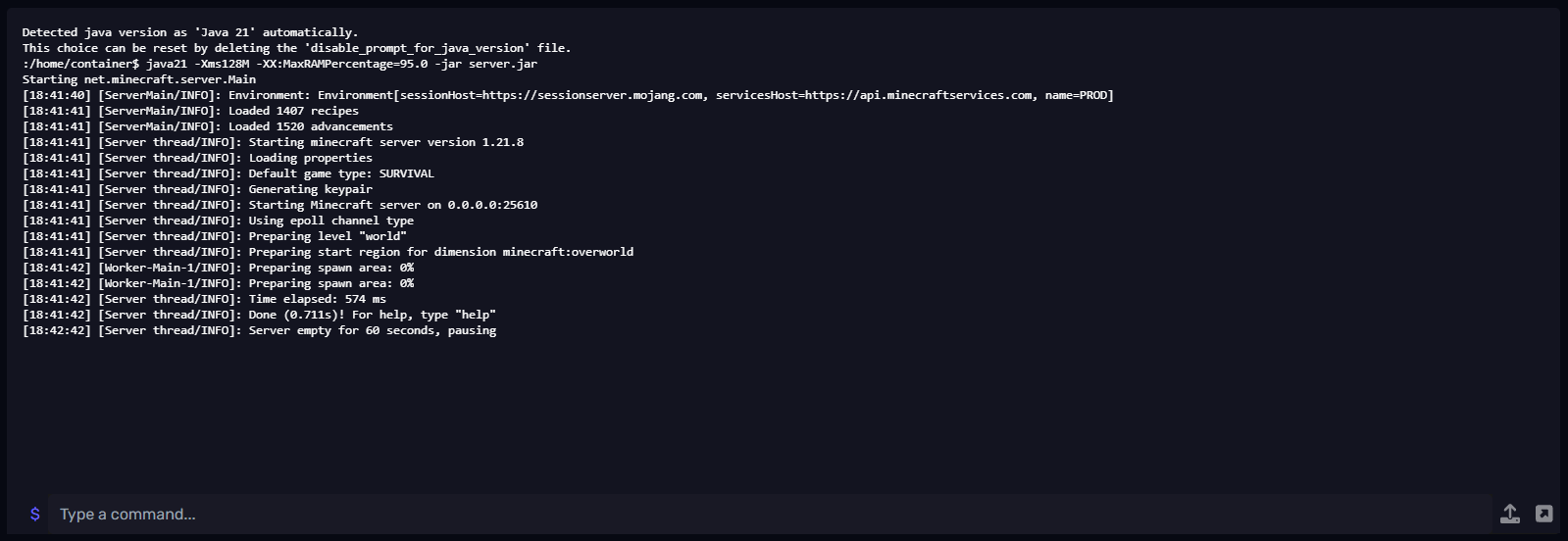
⭐ Note: The console willy only display info when your server is running, refreshing or closing the tab will reset the console. if you're debugging keep console open or maybe use the pop-out console feature to keep the console updated.
Understanding Console Output
Console messages show different types of information:
Server Messages
- Startup Messages - Server loading and initialization
- Plugin Loading - Plugins being loaded and configured
- World Loading - World files being loaded
- Ready Messages - Server ready to accept connections
Player Activity
- Player Joins - When players connect to the server
- Player Leaves - When players disconnect
- Player Actions - Commands and actions performed
- Chat Messages - Player chat (if enabled)
Error Messages
- Plugin Errors - Plugin loading or runtime errors
- Configuration Errors - Invalid settings or configs
- Performance Warnings - High resource usage alerts
- Connection Errors - Network or connection issues
Sending Commands
Execute commands through the console:
Command Input
- Look for the command input field at the bottom of the console
- Type your command in the input field
- Press Enter or click "Send" to execute the command
- The command result will appear in the console
Common Commands for Minecraft as a example
- help - Show available commands
- list - Show online players
- save-all - Save all world data
- stop - Safely stop the server
- restart - Restart the server
- reload - Reload server configuration
Console Features
Additional console capabilities:
Log Management
- Scroll History - Scroll through previous messages
- Search Function - Search for specific messages
- Clear Console - Clear the console display
- Export Logs - Download console logs
Command Features
- Command History - Access previously used commands
- Auto-complete - Tab completion for commands
- Syntax Highlighting - Commands highlighted for clarity
- Error Handling - Clear error messages for invalid commands
⚠️Common Console Issues
Solutions for frequent console problems:
Console Not Loading
- Server Status - Ensure server is running
- Refresh Page - Refresh the console page
- Check Connection - Verify internet connection
- Clear Browser Cache - Clear browser cache and cookies
Commands Not Working
- Check Syntax - Verify command spelling and format
- Server Permissions - Ensure you have permission to use commands
- Plugin Commands - Some commands require specific plugins
- Server State - Some commands only work when server is fully loaded
Console Lag
- High Activity - Server might be processing many events
- Clear Console - Clear console to improve performance
- Check Server Load - High server load can cause console lag
- Refresh Connection - Refresh the console connection
Advanced Console Usage
Advanced console features and tips:
Monitoring Tips
- Watch for Errors - Monitor for error messages
- Track Performance - Watch for performance warnings
- Monitor Players - Keep track of player activity
- Check Plugins - Monitor plugin loading and errors
Command Best Practices
- Test Commands - Test new commands carefully
- Backup Before Changes - Backup before major changes
- Use Help Command - Use help to learn new commands
- Check Permissions - Ensure you have proper permissions
Console vs File Manager
When to use console vs file manager:
Use Console For
- Real-time Monitoring - Live server activity
- Command Execution - Running server commands
- Error Diagnosis - Troubleshooting issues
- Player Management - Player-related commands
Use File Manager For
- File Editing - Editing configuration files
- File Uploads - Uploading new files
- Backup Management - Managing backup files
- Plugin Installation - Installing new plugins
Getting Help
If you need assistance with the console, you can find help through the following resources:
- Knowledge Base: Check our comprehensive guides.
- Support Ticket: Submit a ticket for technical issues.
- Discord: Join our community using the widget below.
- Community Forum: Connect with other server owners.
- Video Tutorials: Coming soon.