
The File Manager allows you to directly edit and manage your server files through your web browser. This guide shows you how to use the File Manager effectively.
What is the File Manager?
The File Manager provides web-based file management for your server:
- File Editing - Edit configuration files directly in browser
- File Upload - Upload files from your computer
- File Download - Download files to your computer
- Directory Navigation - Browse server folders
- File Operations - Copy, move, rename, and delete files
- Permission Management - Set file permissions
- Search Function - Find specific files quickly
- Backup Creation - Create file backups to your PC
- Renaming - You can rename files
- Compressing - Compress files to package them for download
- Decompressing - Decompress a zip for larger files
Accessing the File Manager
Open the File Manager in your Game Panel:
- Log into your HostByte Game Panel
- Navigate to your server
- Look for "Management" in the left sidebar
- Click on "File Manager" to open the File Manager
- You'll see your server's file structure
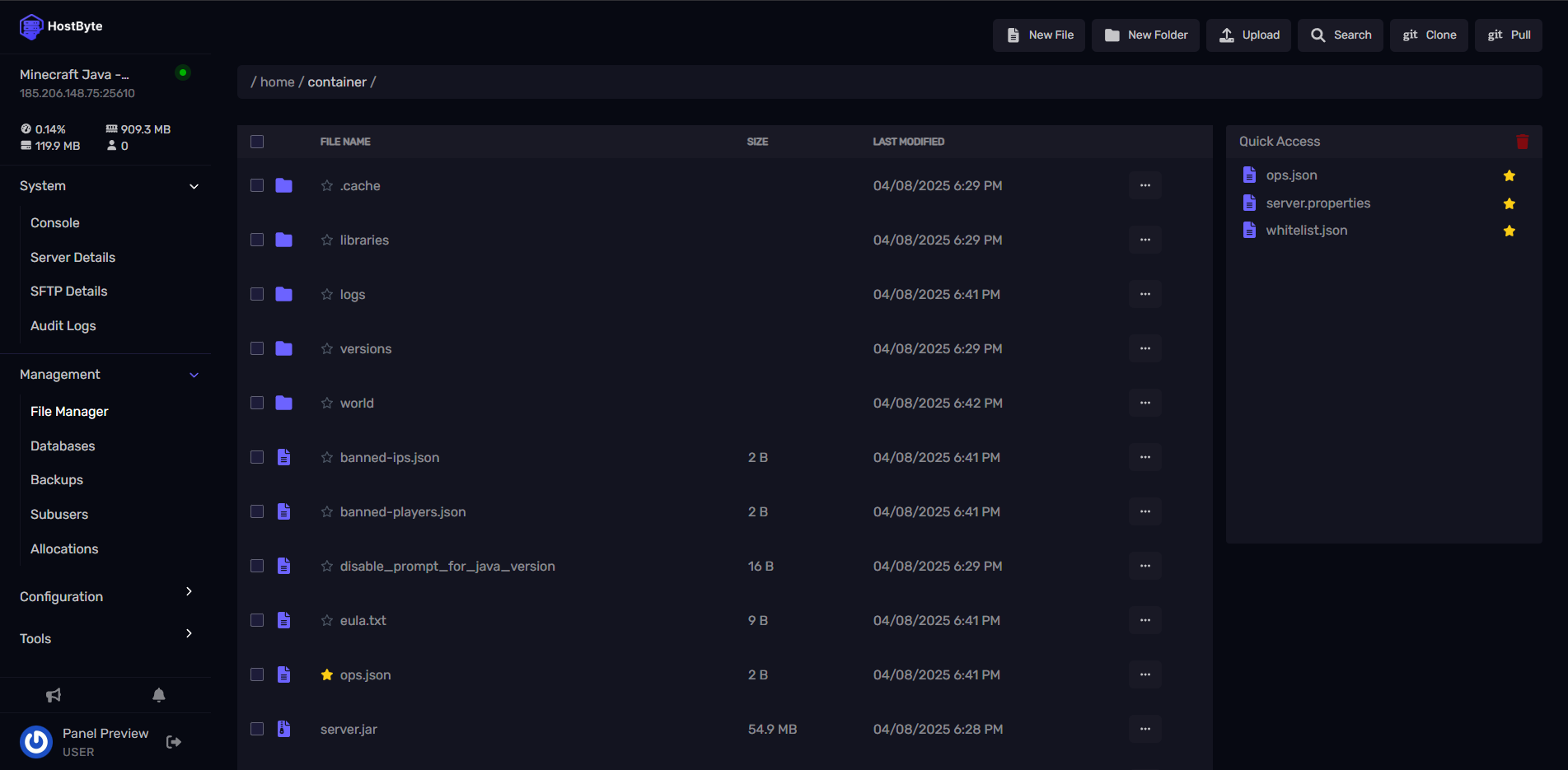
⭐ Note: The File Manager works whether your server is running or stopped.
Understanding the File Manager Interface
The File Manager interface is organized for easy navigation:
Navigation Panel
- Breadcrumb Trail - Shows current directory path
- Folder Tree - Navigate through directories
- Quick Access - Common folders for quick navigation
- Search Bar - Find files and folders
File List
- File Names - Names of files and folders
- File Sizes - Size of files in bytes/KB/MB
- Modified Dates - When files were last changed
- File Types - Icons indicating file types
- Actions - Available actions for each file
Editing Files
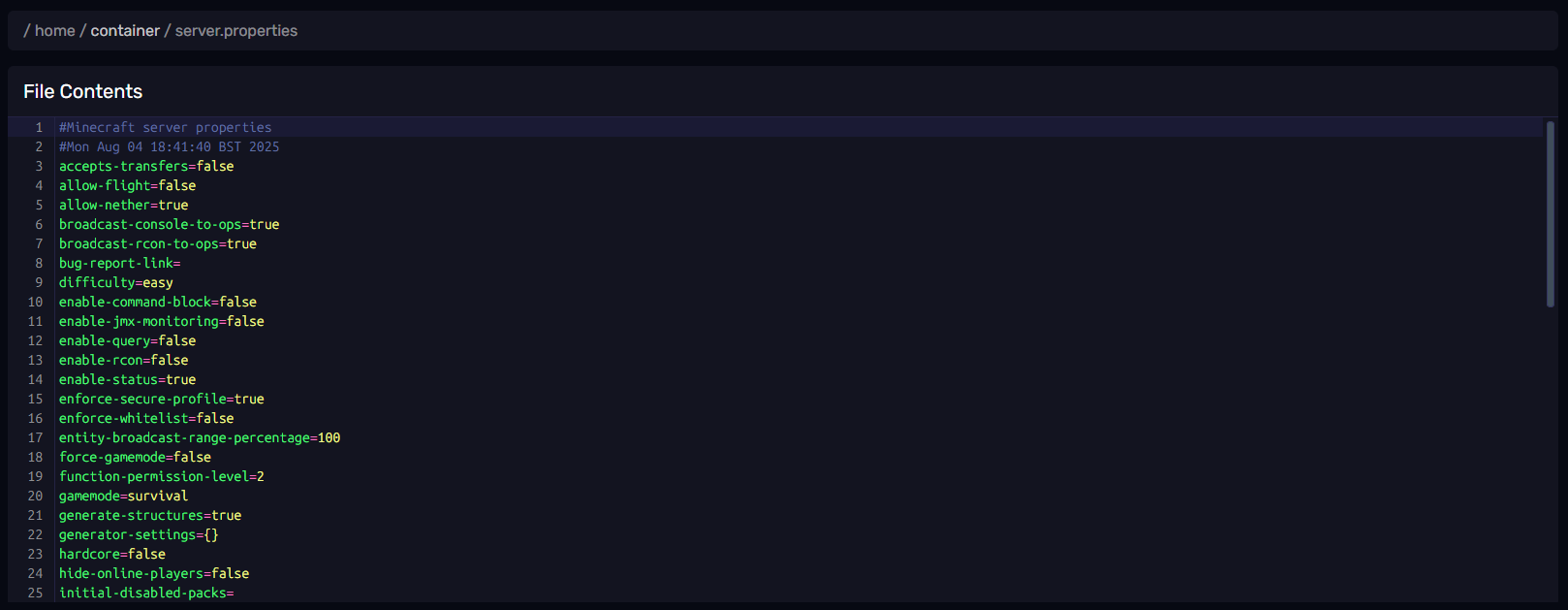
Edit configuration files directly in the browser:
Opening Files
- Navigate to the file you want to edit
- Click the edit icon next to the file
- The file will open in the built-in text editor
- Make your changes to the file
- Click "Save" to save your changes
Editor Features
- Syntax Highlighting - Code is highlighted for readability
- Line Numbers - Shows line numbers for easy reference
- Search and Replace - Find and replace text
- Undo/Redo - Undo or redo changes
- Auto-save - Automatic saving of changes
Common File Types
- .yml/.yaml - Configuration files (YAML format)
- .properties - Server properties files
- .json - JSON configuration files
- .txt - Text files and logs
- .jar - Plugin and mod files
Uploading Files
Upload files from your computer to the server:
Single File Upload
- Navigate to the destination folder
- Click "Upload" or "Upload Files" button
- Select the file from your computer
- Wait for upload to complete
- File will appear in the file list
Moving Larger Files (.zip)
- First create a zip for example a world you want to add in minecraft using something like Winrar
- Drag and drop or click the upload button to upload your zip to your desired location
- Click the Ellipsis (...) and click decompress
- You can also download the zip
- Delete the zip after to save space if needed
Git Clone / Git Pull
- Click Git Clone to clone your Github repository
- Enter Repository URL and Branch
- Now click Submit
- To sync changes Click Git Pull
- Now click Submit
Multiple File Upload
- Drag and Drop - Drag multiple files at once
- Select Multiple - Hold Ctrl/Cmd to select multiple files
- Progress Tracking - See upload progress for each file
- Error Handling - Failed uploads are clearly marked
Upload Best Practices
- Check File Size - Large files may take time to upload
- Verify File Type - Ensure file is compatible with server
- Backup Existing - Backup files before overwriting
- Check Permissions - Ensure files have correct permissions
⚠️Common File Manager Issues
Solutions for frequent problems:
Can't Edit Files
- File Permissions - Check if file is read-only
- File Type - Some file types can't be edited
- File Size - Very large files may not open
- Browser Issues - Try refreshing the page
Upload Failures
- File Size - Check file size limits
- File Type - Some file types may be restricted
- Storage Space - Check available server storage
- Network Issues - Check internet connection
File Not Found
- Check Path - Verify you're in the correct folder
- Use Search - Search for the file name
- Refresh Page - Refresh to update file list
- Check Permissions - File may be hidden or restricted
Getting Help
If you need assistance with the console, you can find help through the following resources:
- Knowledge Base: Check our comprehensive guides.
- Support Ticket: Submit a ticket for technical issues.
- Discord: Join our community using the widget below.
- Community Forum: Connect with other server owners.
- Video Tutorials: Coming soon.