
How to Create a Garry's Mod Server (Step-by-Step Guide)
Creating your own Garry's Mod server allows you to play with friends, install addons, and run custom gamemodes like DarkRP or TTT. This guide walks you through setting up your server using the HostByte Game Panel.
Step 1: Access Your Game Panel
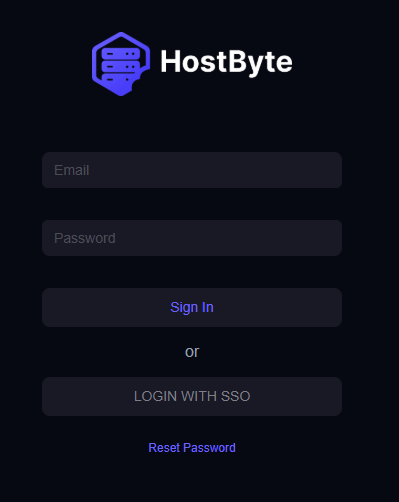
- Go to game.hostbyte.net
- Log in using your account details
- Select your Garry's Mod server from the dashboard
- Click Manage to open the control panel
Note: If you need help accessing your panel, see our guide on accessing your game panel.
Step 2: Start Your Server
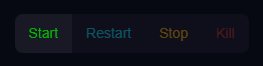
- On the main dashboard, click Start
- Wait for the server to fully boot
- Check the console for a successful startup message
Tip: The console shows live logs and errors while your server is running.
Step 3: Find Your Server IP and Port
- In the panel, go to Server Details
- Locate your IP Address and Port
- This will look something like:
123.45.67.89:27015
You will use this to connect to your server.
Step 4: Join Your Server in Garry's Mod
-
- Open Garry's Mod
- Press the ~ (tilde) key to open the console
- Enter your server IP:
connect 123.45.67.89:27015- Press Enter to connect
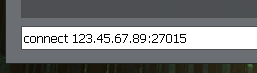
Note: If you can't find or press the tilde key, go into options, Keyboard, and put a keybind to open "Toggle Developer console" right at the bottom.
Step 5: Change Your Server Name
- Go to Startup or Configuration Files
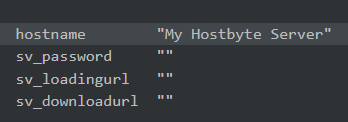
- Open or locate your server.cfg
- Add or edit the following line:
hostname "My Garry's Mod Server"- Save the file
- Restart your server
Step 6: Install Addons or Gamemodes
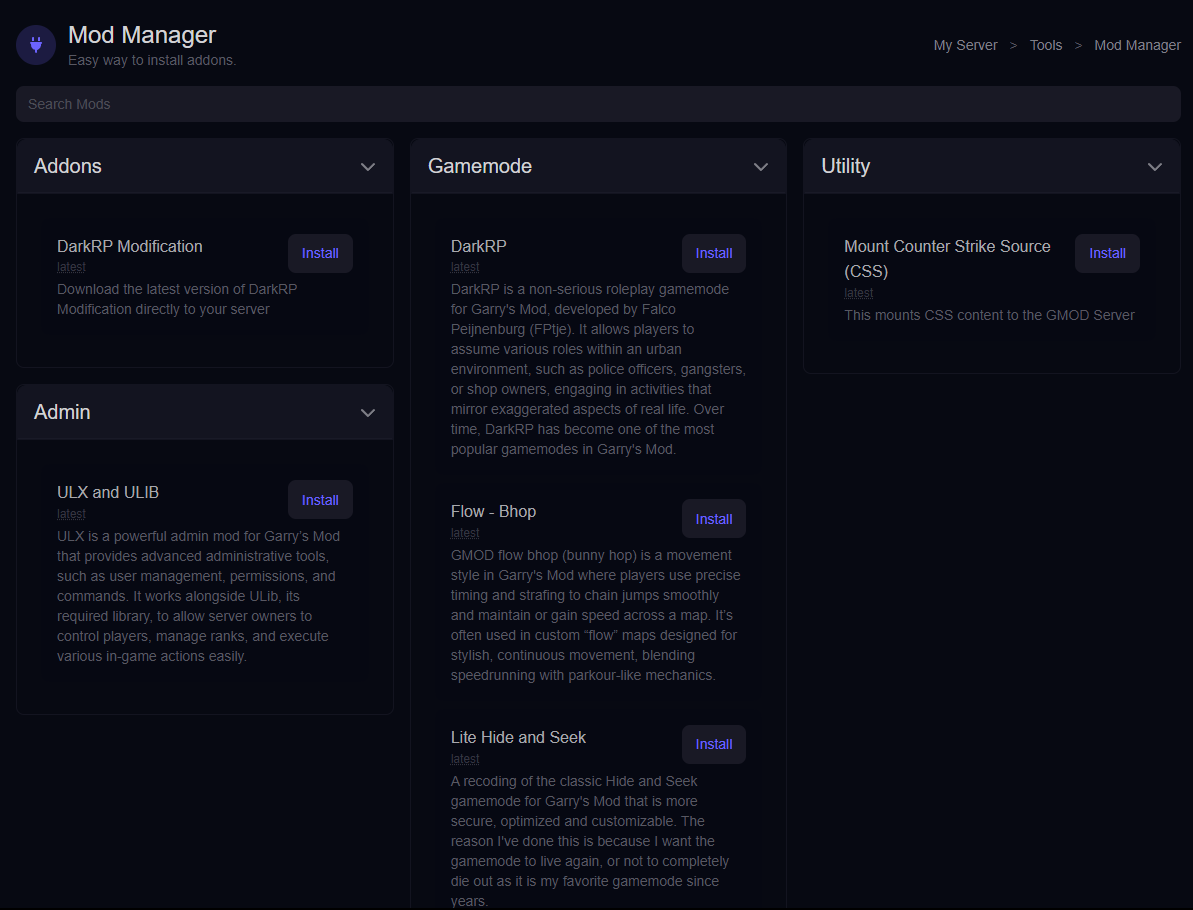
You can easily customize your Garry's Mod server using the built-in Mod Manager in your panel.
Using the Mod Manager (Recommended)
- In your panel, go to Tools
- Click on Mod Manager
- Browse available addons and gamemodes
- Select the one you want and click install
- Wait for the installation to complete
- Restart your server
The Mod Manager supports one-click installs for:
- DarkRP
- DarkRP Modifications
- ULX & ULIB (Admin System)
- Prop Hunt: Enhanced
- Hide and Seek
- StarWarsRP
Note: More addons and gamemodes are added regularly, you can also make suggestions in the discord.
Manual Installation (Optional)
- Upload addons using the File Manager
- Use SFTP for larger files. SFTP Guide
- Add Workshop collections for automatic downloads
This is covered in more advanced guides if you need full control.
These are covered in separate guides for more detailed setup.
Troubleshooting
Server Not Starting
- Check the console for errors
- Ensure your server has finished installing
- Try restarting the server
Cannot Connect to Server
- Verify the IP and port are correct
- Ensure the server is running
- Wait a few minutes after startup
Server Not Showing in Browser
- Use direct connect via IP instead
- Make sure the server is fully loaded
- Check for configuration errors
- Make sure you've added the Steam Account Token
Next Steps
- Install addons and workshop content
- Set up admin permissions
- Configure your server settings
- Optimize performance for more players
Getting Help
- Knowledge Base: Explore more guides for configuration, setup, and troubleshooting.
- Support Ticket: Open a ticket from your HostByte account if you need assistance.
- Discord: Join our community below.
- Status Page: Check live updates at status.hostbyte.net.