
How to Find Your Server IP and Connect to a Garry's Mod Server
This guide shows you how to find your Garry's Mod server IP address and connect to it using different methods, including direct connect and the server browser.
Step 1: Find Your Server IP and Port
- Log in to your HostByte Game Panel
- Select your Garry's Mod server
- Click Manage
- Go to Server Details
- Locate your IP Address and Port
123.45.67.89:27015
Note: Your server IP and port are automatically assigned in the panel. You do not need to configure them manually.
Step 2: Connect Using the Server Browser
- Open Garry's Mod
- Click Find Multiplayer Game
- Go to the Favorites tab
- Click Add a Server
- Paste your server IP
- Click Add and then Join Server
Tip: This method lets you easily reconnect to your server later.
Step 3: Connect Using Console (Fastest Method)
- Open Garry's Mod
- Press the ~ (tilde) key to open the console
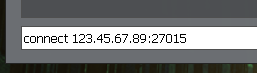
- Enter your server IP:
connect 123.45.67.89:27015- Press Enter to connect
Tip: This method works even if your server does not appear in the server browser.
Step 4: Connect via Steam Server Browser (Optional)
- Open Steam
- Click View → Game Servers
- Go to the Favorites tab
- Add your server IP
- Join your server
Troubleshooting
Server Not Showing
- Wait a few minutes after starting the server
- Use the console connect method instead
- Ensure the server is fully running
Connection Failed
- Double-check the IP and port
- Make sure the server is online
- Restart the server and try again
Friends Cannot Join
- Share the full IP and port
- Ensure the server is public (not LAN)
- Verify the server is running
Next Steps
- Install addons and gamemodes
- Set up admin permissions
- Configure your server settings
- Optimize your server performance
Getting Help
- Knowledge Base: Explore more guides for configuration, setup, and troubleshooting.
- Support Ticket: Open a ticket from your HostByte account if you need assistance.
- Discord: Join our community below.
- Status Page: Check live updates at status.hostbyte.net.