
How to Set Up a Garry's Mod Dedicated Server (Full Guide)
Setting up a Garry's Mod dedicated server allows you to run a persistent multiplayer server with full control over addons, gamemodes, and configuration. This guide walks you through setting up and configuring your server using the HostByte Game Panel.
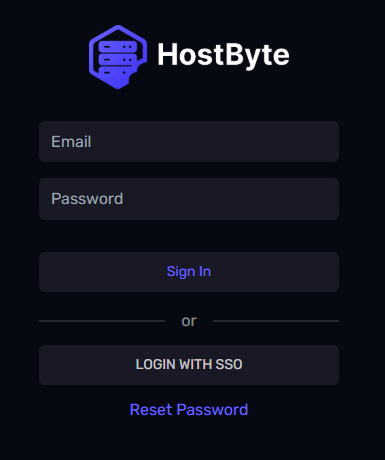
Step 1: Access Your Game Panel
- Go to game.hostbyte.net
- Log in using your account details
- Select your Garry's Mod server
- Click Manage to open the panel
Step 2: Start the Server for Initial Setup
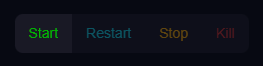
- Click Start on the main dashboard
- Wait for the server to fully install and boot
- Open the Console to monitor progress
Note: The first startup may take longer as the server installs required files.
Step 3: Configure Your Server (server.cfg)
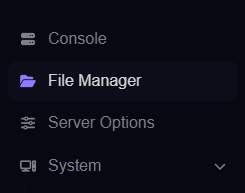
- Go to File Manager
- Navigate to:
/garrysmod/cfg/server.cfg- If the file does not exist, create a new file named server.cfg
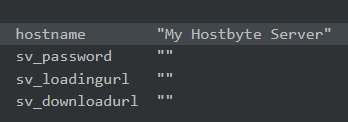
- Add basic configuration:
hostname "My Garry's Mod Server" sv_password "" sv_lan 0 sbox_maxplayers 16- Save the file
- Restart your server
Tip: This file controls your server name, access, and basic settings.
Step 4: Choose and Install a Gamemode
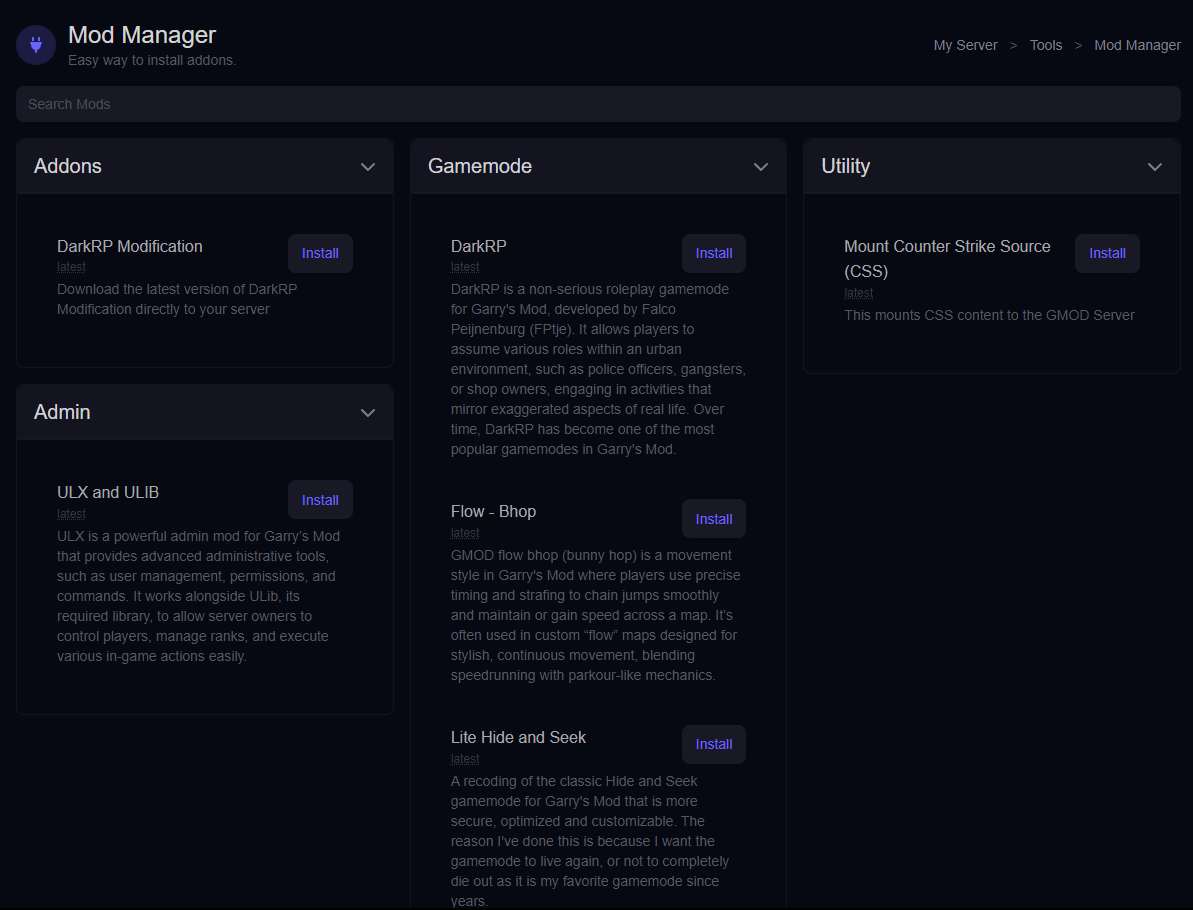
You can install a gamemode using the built-in Mod Manager.
- Go to Tools → Mod Manager
- Select a gamemode such as DarkRP, Prop Hunt, or Hide and Seek
- Click install and wait for completion
- Restart your server
Note: Some gamemodes may require additional addons or content packs.
Step 5: Set Your Server Map and Gamemode
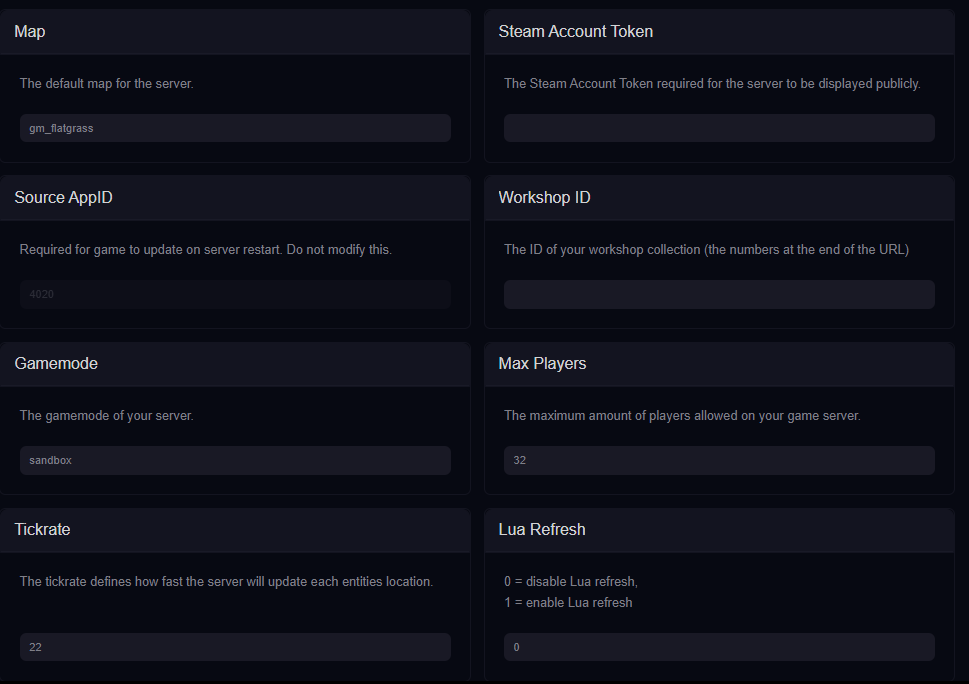
- Go to Startup settings
- Set your map (for example):
gm_flatgrass- Set your gamemode (for example):
darkrp- Save changes
- Restart your server
Tip: Make sure the gamemode matches what you installed.
Step 6: Install Admin Tools (ULX & ULIB)
Admin tools allow you to manage players, permissions, and moderation.
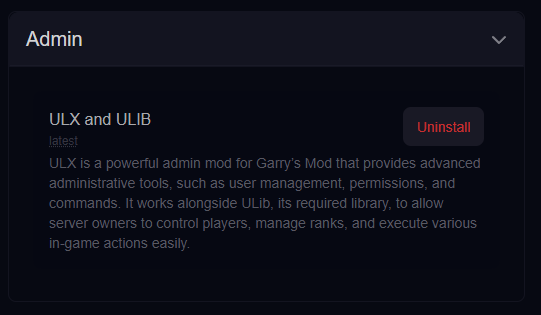
- Go to Tools → Mod Manager
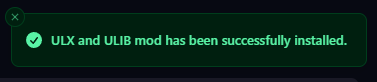
- Install ULX & ULIB
- Restart your server
Once installed, you can assign admin roles in-game or through configuration.
Step 7: Join Your Server
- Go to Server Details in your panel
- Copy your IP Address and Port
- Open Garry's Mod
- Press The ~ (tilde) key to open the console
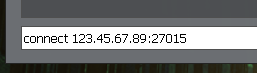
- Type the following command:
connect 123.45.67.89:27015 - Press Enter to connect
Troubleshooting
Server Not Starting
- Check console for errors
- Ensure installation completed fully
- Restart the server
Gamemode Not Loading
- Verify gamemode name is correct
- Ensure it is installed
- Restart after changes
Players Missing Content
- Install required addons
- Use Workshop collections
- Ensure all dependencies are installed
Next Steps
- Install additional addons and workshop content
- Configure advanced server settings
- Set up FastDL for faster downloads
- Optimize performance for more players
Getting Help
- Knowledge Base: Explore more guides for configuration, setup, and troubleshooting.
- Support Ticket: Open a ticket from your HostByte account if you need assistance.
- Discord: Join our community below.
- Status Page: Check live updates at status.hostbyte.net.