
Whitelisting lets you control who can join your Minecraft Java server. This guide shows you how to enable the whitelist, add/remove players, and fix common issues using the HostByte Game Panel.
What is the Whitelist?
The whitelist is an allow-list. When enabled, only players you add can join your server. Everyone else will see “You are not whitelisted on this server!”
- Works with Vanilla, Paper, Spigot, Forge/Fabric (Java Edition).
- Player entries are stored in
whitelist.jsonin your server files.
Step 1: Open Your Server Console
- Log in to the HostByte Game Panel.
- Click your Java server to open its dashboard.
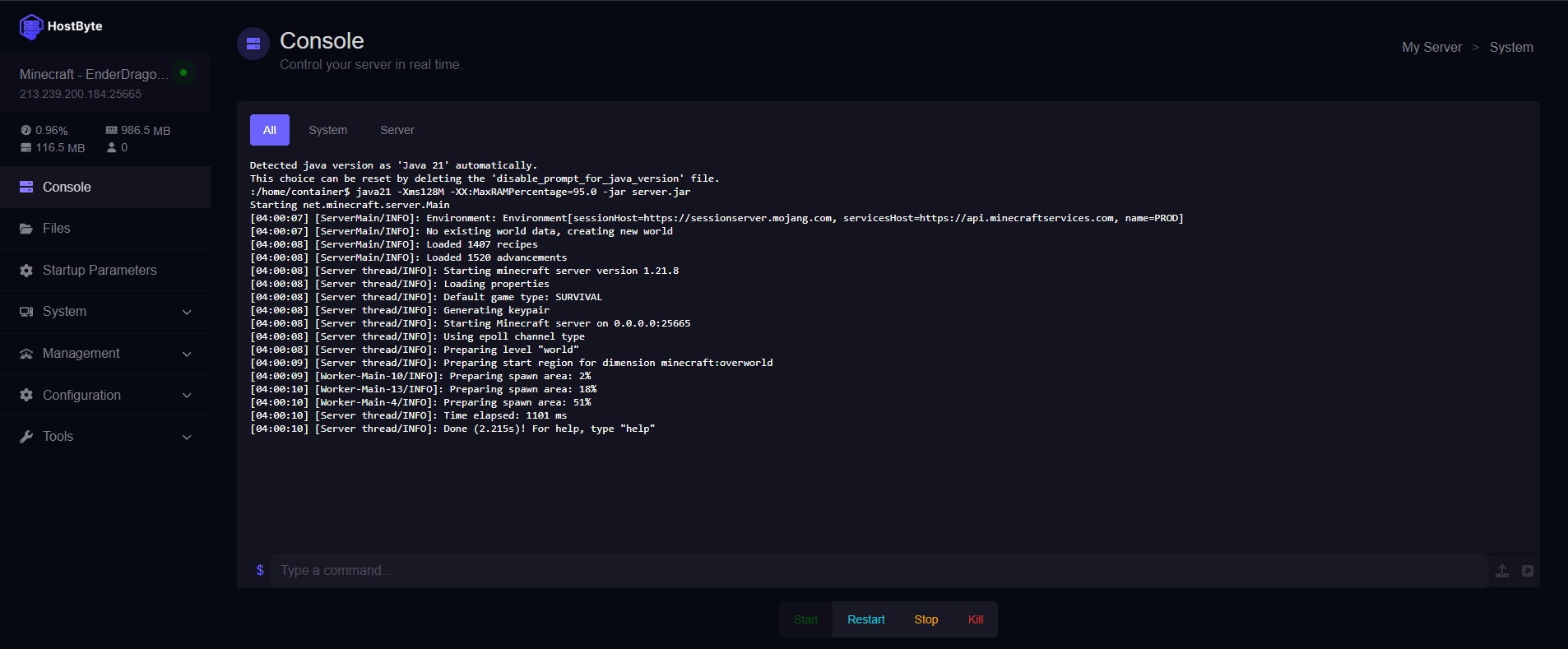
- In the left sidebar, click Console.
Step 2: Enable the Whitelist (Quick Method)
You can enable the whitelist live with a single console command (no restart required):
whitelist onTo disable it later:
whitelist off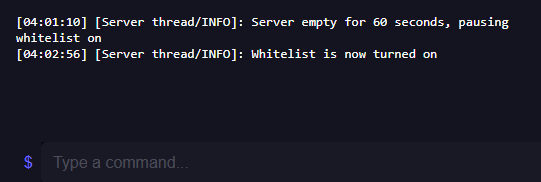
Step 3: Add Players to the Whitelist
Add players by their exact Java username. From the Console (no slash):
whitelist add PlayerNameIn-game (as an OP) use the slash command:
/whitelist add PlayerNameRemove a Player
whitelist remove PlayerNameList Whitelisted Players
whitelist listReload the Whitelist
whitelist reload➡️ Note: Usernames are resolved to a player’s unique UUID. If a player changes their username, they will still be allowed if originally added successfully.
Step 4 (Optional): Enable via server.properties
If you prefer enabling the whitelist through the config file:
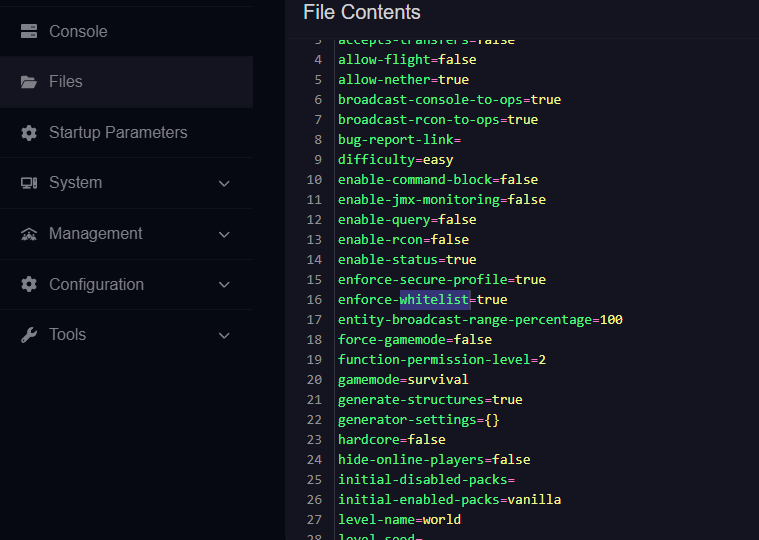
- Click Files on the left side of the panel.
- Edit
server.properties. - Set the line to:
white-list=true - Also set the line to:
enforce-whitelist=true - Click Save and Restart the server.
⚠️ Heads-up: Only use one method at a time. If you enable via file, remember to restart; if you use console commands, you can apply changes immediately and whitelist reload as needed.
Step 5 (Advanced): Edit whitelist.json Manually
You can add entries directly, but you must use correct UUIDs. We recommend using commands unless you know the player’s UUID.
- Open File Manager → find
whitelist.json. - Use valid JSON entries like:
[ { "uuid": "00000000-0000-0000-0000-000000000000", "name": "PlayerName" } ] - Save and run
whitelist reloadin the console.
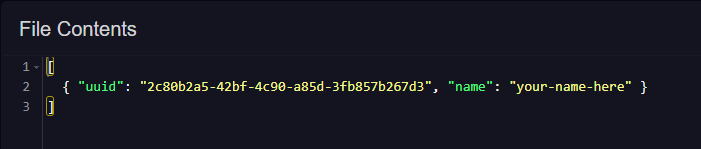
⚠️ Heads-up: You can find your UUID using a website like: https://mcuuid.net/
Command Quick-Reference
whitelist on— Enable whitelistwhitelist off— Disable whitelistwhitelist add <name>— Add a playerwhitelist remove <name>— Remove a playerwhitelist list— Show all whitelisted playerswhitelist reload— Reload changes without restarting
⚠️ Common Issues & Fixes
“You are not whitelisted on this server!” (but they are added)
- Run
whitelist reloadto re-scan the list. - Confirm the username spelling (case-sensitive) on first add.
- Make sure you edited the correct server if you run a network/proxy.
- Restart the server if you changed
server.properties.
“Failed to add player / profile not found”
- Ensure the player has a legitimate Java account and correct username.
- Verify your server has internet connectivity (for UUID lookup).
- Try again in a few minutes (rate limits can briefly fail lookups).
Whitelist appears ineffective
- Verify whitelist is actually on:
whitelist on. - If you recently edited files, restart or run
whitelist reload. - Keep
online-mode=trueinserver.propertiesfor secure authentication.
Security Best Practices
- Keep online-mode enabled to validate player identities.
- Whitelist your admins and staff too—don’t rely on OP alone.
- Use LuckPerms for fine-grained permissions control.
- Back up
server.propertiesandwhitelist.jsonregularly.
Getting Help
- Knowledge Base: Browse more Java Edition guides.
- Support Ticket: Log in to your HostByte account to open a ticket.
- Discord: Join our community:
- Status Page: Check maintenance/outages at status.hostbyte.net.