
This guide shows you how to switch your Minecraft Java Edition server’s edition (Paper, Spigot, Fabric, Forge) and game version using the HostByte Game Panel. It also covers when (and when not) to use the Format option.
Before You Start (Strongly Recommended)
- Back up your server (worlds, plugins/mods, configs). Use Backups in the panel or download files via SFTP.
- Check compatibility:
- Paper/Spigot use plugins (Spigot API).
- Fabric/Forge use mods (not plugins).
- Plugins/mods are version-specific—update them when you change Minecraft versions.
- Downgrading? Worlds created or upgraded on newer versions may not safely load on older versions.
Step 1: Open “Server Actions”
- Log in to the HostByte Game Panel.
- Select your Java server.
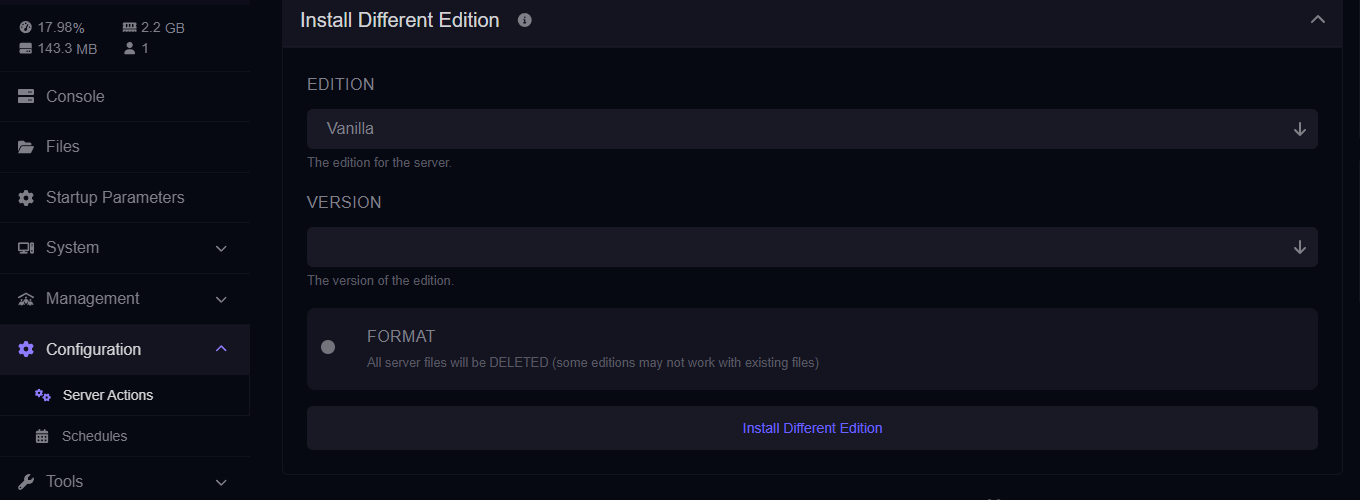
- On the left sidebar, click Configuration → Server Actions.
Step 2: Choose Your Edition and Version
Inside Install Different Edition, find the Edition selector and pick one:
- Paper — Performance-focused, Spigot-compatible plugins.
- Spigot — Stable plugin platform (fewer performance patches than Paper).
- Fabric — Lightweight mod loader (Fabric mods).
- Forge — Popular mod loader for larger modpacks (Forge mods).
Once you've selected which edition you want, Find and select what version you want
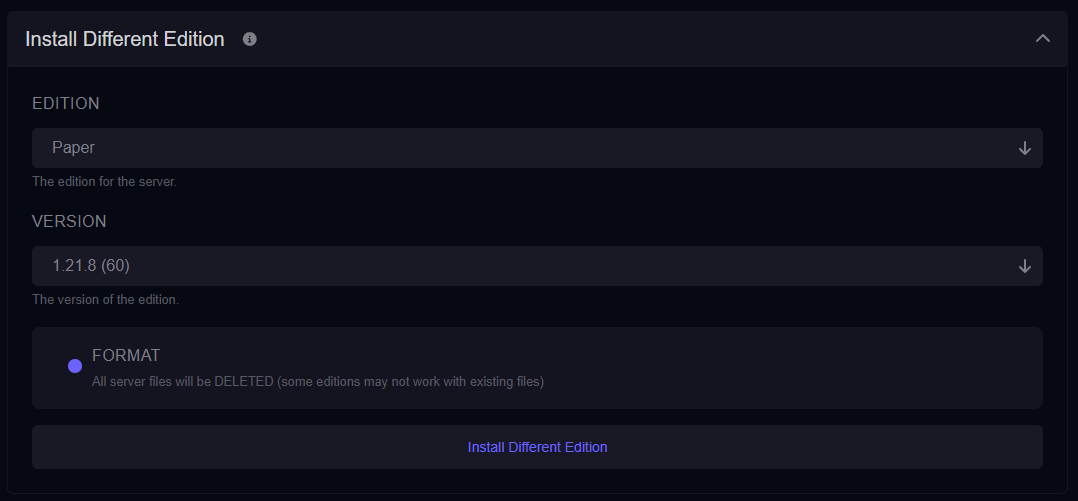
Tip: Match your plugins/mods to this version to avoid startup errors.
Step 3: Decide Whether to Format
You’ll see an optional Format button. This wipes the server files and installs a clean set for the selected edition/version.
⚠️ FORMAT WARNING
Clicking Format will DELETE ALL SERVER FILES.
When to use Format:
- Switching between plugins ↔ mods (Paper/Spigot ⇄ Fabric/Forge).
- Cleaning up a broken installation or starting fresh.
- Installing a brand-new modpack where a clean environment is expected.
When to avoid Format:
- Minor version changes within the same edition (e.g., Paper 1.20.4 → 1.20.6), and you want to keep files.
- You have worlds/configs you still need on disk (ensure a backup first regardless).
Step 5: Quick Install
- Confirm your Edition and Version selections.
- If you chose Format, confirm the deletion prompt after ensuring you have backups.
- Click the panel action to Install Different Edtion and it'll automatically start the process.
Step 6: Post-Change Checks
- Open the Console to watch startup logs for errors.
- Re-upload plugins (Paper/Spigot) or mods (Fabric/Forge) compatible with the new version.
- Verify your world loads and TPS is stable.
Common Issues & Fixes
Server boots to errors after switching
- Remove incompatible plugins/mods. Install versions matching your new edition/version.
- For mod loaders, ensure the correct loader files are present (Fabric vs Forge).
- If switching between plugin and mod ecosystems, consider using Format for a clean start.
World won’t load or crashes
- Restore your backup of
world(andworld_nether,world_the_endif applicable). - Avoid downgrading worlds across major versions—use a copy on older versions at your own risk.
Client can’t join (Outdated Client/Server)
- Ensure your game client version matches the server version you just set.
- If you run a proxy/network, align the proxy’s target version with this server.
Edition Cheat-Sheet
- Paper: Best performance with plugin support (Spigot API).
- Spigot: Stable plugin platform; fewer performance patches than Paper.
- Fabric: Lightweight mod loader; fast updates; Fabric mods only.
- Forge: Heavy-duty modding; large modpacks; Forge mods only.
Getting Help
- Knowledge Base: See related Java guides (backups, plugin/mod installs).
- Support Ticket: Log in to your HostByte account to open a ticket.
- Discord: Join our community:
- Status Page: Check maintenance/outages: status.hostbyte.net.