
Need a fresh start? This guide shows you how to safely reset (regenerate) your Minecraft Java world using the HostByte Game Panel. You’ll back up, remove the old world folders, optionally set a seed, and let the server generate a brand-new world.
Before You Start (Important)
- Back up your server first (worlds, plugins/mods, configs). See: How to Back Up Your Server.
- Stopping the server before deleting files prevents corruption.
- If you want a specific terrain, prepare a seed value (numbers or text both work).
Step 1: Stop Your Server
- Log in to the HostByte Game Panel.
- Open your Java server.
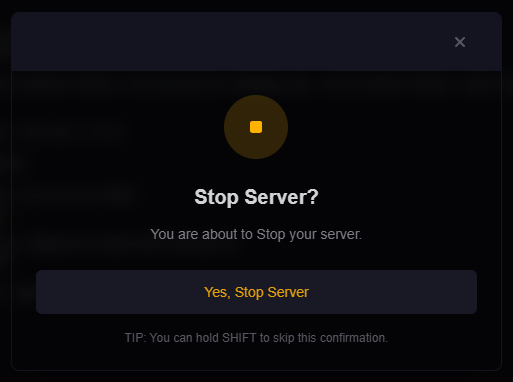
- Click Stop and wait until the status shows Offline.
Step 2: Identify Your World Folder Name
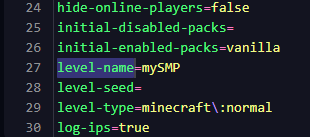
By default, the main world folder is world. If you changed it, it will match level-name in server.properties.
- Go to File Manager.
- Open
server.propertiesand findlevel-name=. Note the value (e.g.,survivalSMP).
Step 3: (Optional) Set a New Seed
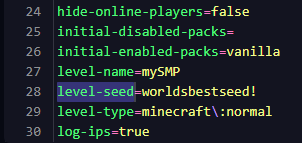
If you want a specific world layout, set level-seed in server.properties:
- In File Manager, edit
server.properties. - Set (or add) a line like:
level-seed=8675309orlevel-seed=glacier. - (Optional) Choose a generator type for your version (e.g.,
level-type=default/minecraft:normal,minecraft:flat,minecraft:large_biomes,minecraft:amplified). - Save the file.
Step 4: Delete (or Rename) Old World Folders
⚠️ DELETION WARNING
Deleting world folders permanently removes builds and player progress. Make a backup first or rename the folders to keep them (e.g., world_backup_2025-09-14).
- In File Manager, locate these folders based on your
level-name: - Delete the folder (or Rename it to archive).
For example, I've renamed "mySMP" to "mySMP-Backup"
Now restart the server. once the server has restarted you'll get another "world" folder, rename it to match the "level-name=" in your server.properties in this example "mySMP"

⚠️ If your server.properties are default (level-name=world) then you don't have to rename the folder each time, but if you have renamed the folder to match "level-name=" you might need to restart the server one last time.
Step 5: Start the Server to Generate a Fresh World
- Return to the server dashboard.
- Click Start.
- Watch the Console for messages like “Preparing spawn area”.

After startup completes, the server will have generated a brand-new world using the seed and settings you configured.
Optional: Multiverse / Multiple Worlds
If you manage worlds with the Multiverse-Core plugin:
- Delete a world from Multiverse (in-game as OP):
/mvdelete <worldname>then confirm. - Remove the folder in File Manager to free disk space.
- Create a new world:
/mvcreate <name> normal -s <seed>(usenetherorendfor other types). - Set default world in configs if needed, and update any plugins that reference world names.
Common Issues & Fixes
Old world still loads
- Confirm
level-namematches the folder you deleted. - Make sure the server was stopped before deleting folders.
- Check for a
worlds/container (some setups store worlds in a subfolder—seebukkit.yml).
Players spawn in the wrong place
- Delete the
playerdatafolder inside the world to reset player positions (or ask players to use/spawnif you have a spawn plugin). - Check plugins like EssentialsX Spawn or Multiverse for spawn overrides.
Server crashes or won’t generate a new world
- Check the console for plugin/mod errors. Remove incompatible plugins and try again.
- Ensure there’s enough disk space.
- If you changed
level-typeor generator settings, verify they’re valid for your server version.
Only want to reset Nether or End
- Delete
<level-name>_netheror<level-name>_the_endonly, then restart. - On older versions: delete
world/DIM-1(Nether) orworld/DIM1(End) and restart.
Best Practices
- Always create a backup just before resetting.
- Rename instead of delete if you might want to roll back.
- Document your
level-name, seed, and any generator settings for future reference.
Getting Help
- Knowledge Base: See related Java guides (backups, seeds, Multiverse).
- Support Ticket: Log in to your HostByte account to open a ticket.
- Discord: Join our community:
- Status Page: Check maintenance/outages: status.hostbyte.net.