
Plugins add features like homes, warps, shops, ranks, and protection to your Minecraft Java server. This guide shows how to install, configure, update, and remove Spigot/Paper plugins using the HostByte Game Panel.
Before You Start
- Platform check: Plugins work on Spigot/Paper. They do not work on Fabric or Forge (those use mods).
- Java version: Check which version of java you want to use.
- Back up: Create a backup before adding or updating plugins.
- Go to Configuration → Server Actions.
- Under Edition, choose Spigot or Paper, then pick the exact Minecraft version.
- (Optional) Use Format for a clean install (this deletes all server files—back up first)
Step 1: Download the Plugin (.jar)
- Get plugins from trusted sources. like Curseforge, Modrinth and Spigotmc.
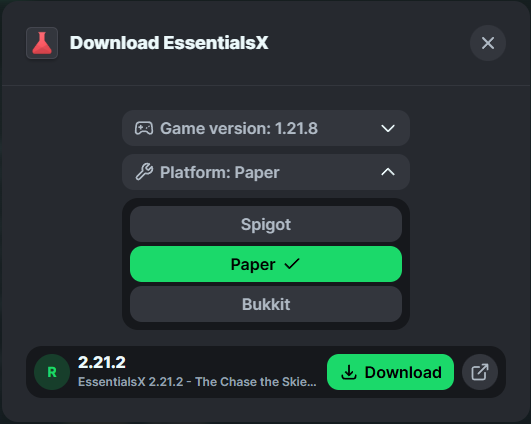
- Download the .jar file for the version of Spigot/Paper you're on for example if you're using 1.21.8 make sure to download the plugin on the correct version and server edition (Spigot/Paper or other editions like bukket).
- if the plugin is .zip Unzip the zip with winrar or 7-Zip.
Step 2: Upload to the /plugins Folder
Option A — File Manager (in the panel)
- Log in to the HostByte Game Panel and open your server.
- Go to File Manager → open the root folder.
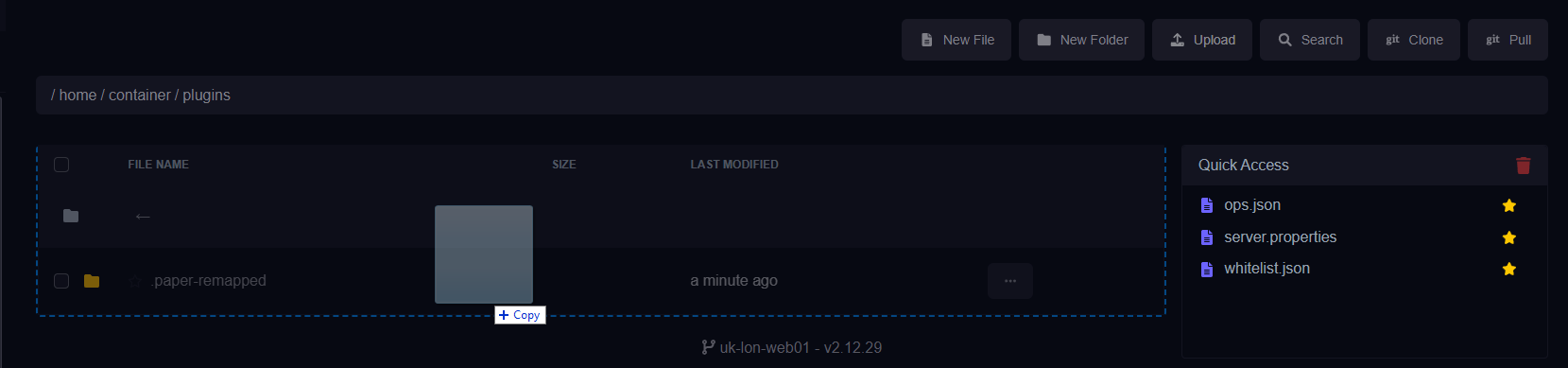
- Open plugins and click Upload.
- Select the plugin .jar you downloaded.
- You could also drag and drop the .jar into the location
Option B — SFTP (recommended for multiple/big files)
- In the panel, note your SFTP Details (host, port, username).
- Connect with FileZilla/WinSCP and upload the .jar into
/plugins.

How to use SFTP: https://www.hostbyte.net/billing/knowledgebase/72/How-to-Connect-via-SFTP.html
Step 3: Restart to Load the Plugin
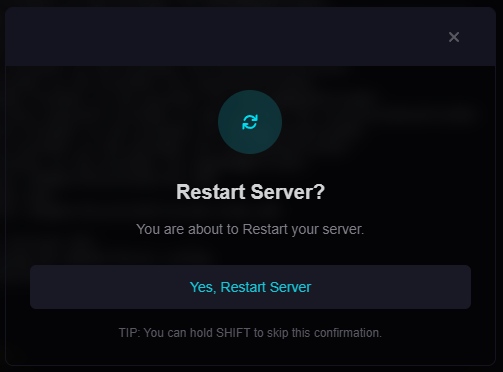
- Back on the dashboard, click Restart.
- Open Console and watch for the plugin to enable without errors.
Verify loaded: In-game (as OP) run /plugins. The plugin should appear (usually in green if enabled).
Step 4: Configure the Plugin
- After first load, most plugins create a folder in
/plugins/PluginName/withconfig.yml(and others). - Edit configs via File Manager or SFTP, then Restart to apply changes.
To verify if the Plugin is installed use the command /plugins
Updating a Plugin
- Backup and read the plugin’s changelog/compat notes.
- Stop the server (or at least avoid hot-reloading).
- Upload the new .jar to
/pluginsand remove the old .jar to prevent duplicates. - Start/Restart and check the console for errors.
Removing a Plugin
- Stop the server.
- Delete the plugin’s .jar from
/plugins. - (Optional) Delete its data folder in
/plugins/PluginName/if you don’t need its configs/data. - Start the server.
Common Issues & Fixes
“Unknown dependency” or “Missing dependency”
- Install required dependencies (e.g., Vault, ProtocolLib, PlaceholderAPI) and restart.
“Unsupported API version” / “Wrong server version”
- Use a plugin build that matches your MC version and Spigot/Paper API.
Plugin doesn’t load; no errors
- Ensure the file extension is
.jarand it’s inside/plugins, not nested in a subfolder or zip. - Remove duplicate versions of the same plugin.
Commands not found / no permission
- Check the plugin’s command syntax and permission nodes.
- Grant permissions via LuckPerms or test as OP.
Lag after installing a plugin
- Profile with spark or Paper timings; misconfigured plugins can be heavy.
- Update to the latest compatible plugin build.
Best Practices
- Add one plugin at a time and test so you know which change caused issues.
- Avoid hot-reload tools on production servers; prefer restarts to prevent memory leaks or duplicates.
- Keep a changelog of installed/updated plugins and versions.
Getting Help
- Knowledge Base: See related Java guides (LuckPerms, EssentialsX, backups).
- Support Ticket: Log in to your HostByte account to open a ticket.
- Discord: Join our community:
- Status Page: Check maintenance/outages: status.hostbyte.net.