
Mods add new blocks, items, mechanics, and performance tweaks to your Minecraft Java server. This guide shows how to install, update, and remove Forge/Fabric mods using the HostByte Game Panel.
Before You Start
- Loader check: Mods require Forge or Fabric (not Spigot/Paper). You can’t mix Forge and Fabric mods in the same server.
- Version matching: The server’s Minecraft version and loader version must match the mods (e.g., Forge 1.20.1 with 1.20.1 Forge mods).
- Dependencies: Many mods require libraries (e.g., Fabric API on Fabric, Architectury, Cloth Config).
- Back up: Create a backup before adding or updating mods.
Step 1: Set the Server to Forge or Fabric
- Log in to the HostByte Game Panel and open your server.
- Go to Configuration → Server Actions.
- Under Edition, choose Forge or Fabric, then pick the exact Minecraft version.
- (Optional) Use Format for a clean install (this deletes all server files—back up first).
Step 2: Download the Mod Files
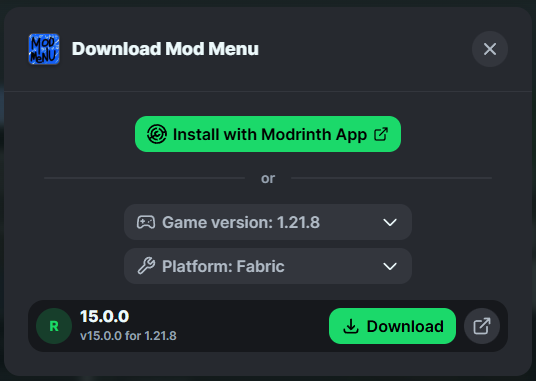
- Download .jar files from trusted sources (e.g., Modrinth/CurseForge).
- Make sure each mod matches both the Minecraft version and the loader (Forge or Fabric).
- Collect required dependencies listed on the mod’s page (e.g., Fabric API).
Step 3: Upload Mods to the Server
Option A — File Manager
- In the panel, open File Manager.
- Open (or create) the
/modsfolder in the server root. - Upload your mod .jar files into
/mods.

Option B — SFTP (recommended for many files)
- Copy your server’s SFTP Details from the panel.
- Connect with FileZilla/WinSCP and upload all mod .jar files into
/mods.

How to use SFTP: https://www.hostbyte.net/billing/knowledgebase/72/How-to-Connect-via-SFTP.html
Step 4: Start and Verify
- Click Restart (or Start if offline).
- Open Console and watch for missing dependency or version mismatch errors.
Client requirement: Most mods are not server-only. Players usually must install the same mods (and versions) on their client to join.
Step 5: Configure Mods
- Many mods generate config files after first run (e.g.,
/configfolder). - Edit configs via File Manager/SFTP and Restart to apply.
- Some packs include
/defaultconfigsor/kubejs(advanced modpacks).
Updating Mods
- Back up and read the mod’s changelog for breaking changes.
- Stop the server.
- Upload the new .jar into
/modsand remove the old .jar to avoid duplicates. - Start the server and check the console.
Removing Mods
- Stop the server.
- Delete the mod’s .jar from
/mods. - (Optional) Remove related configs or data if you don’t need them.
- Start the server and verify it boots cleanly.
Common Issues & Fixes
“Missing Mod” or “Mod Rejections” when joining
- Players must install the same mods (and versions) client-side.
- Share a pack/profile (e.g., via Modrinth/CurseForge app) to avoid mismatch.
“Mod X requires Fabric API / Forge >= X.Y.Z”
- Install the listed dependency (e.g., Fabric API) or update your loader version.
Crashes on startup
- Check the latest log (
logs/latest.log) for the first real error. - Remove recently added mods one by one to isolate conflicts.
- Ensure Java runtime matches modpack requirements (many 1.18+ modpacks require Java 17; newer may prefer 21).
Server is laggy after adding mods
- Some mods are heavy. Profile with a tool like spark (if compatible) and remove/replace offenders.
- Consider performance mods appropriate to your loader (e.g., Lithium, Starlight for Fabric/Forge).
Modpacks (Bulk Install)
- If installing a full modpack, upload all .jar files to
/modsplus any pack-specific folders (/config,/kubejs, scripts). - Match the exact Forge/Fabric loader + MC version the pack targets.
- Allocate appropriate RAM/CPU in your plan; large packs need more resources.
Best Practices
- Add mods incrementally and test—so you know which change caused issues.
- Keep a text list of installed mods + versions for staff and quick client syncing.
- Avoid hot-reload; restart after mod changes to prevent memory/registry issues.
Getting Help
- Knowledge Base: See related Java guides (change edition, backups, troubleshooting).
- Support Ticket: Log in to your HostByte account to open a ticket.
- Discord: Join our community:
- Status Page: Check maintenance/outages: status.hostbyte.net.